The Projectmates Team Discussions tool is a great way to conduct topic-based discussions to ensure everyone is on the same page. This information is consolidated in Projectmates and can be revisited anytime to recount any important discussions that were held.
Create discussion topics and invite other users to reply by copying them.
Reply to discussion topics with your own posts.
Upload attachments to supplement your topics or posts.
Easy to use from the desktop or mobile app.
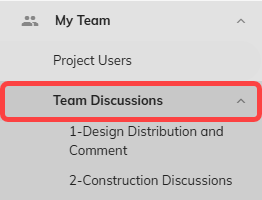
A project’s Team Discussions tool can be accessed by navigating to the project through the My Projects page. Once inside a project, Team Discussions can be found on the left-side menu by clicking My Team > Team Discussions > the Discussions thread you want to enter.
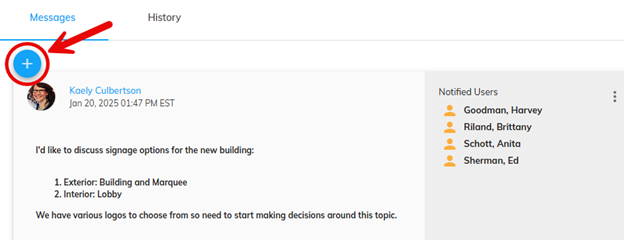
To start a new topic, click the + Topic button on the upper right when inside of a Discussions menu.
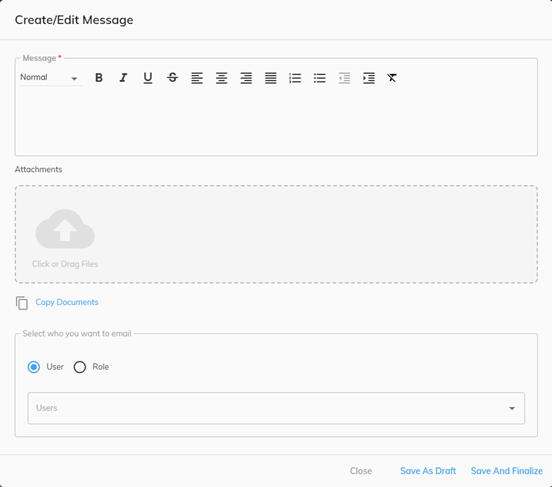
2. You will be prompted with the “Create/Edit Message” pop-up, just as if you were creating a new topic, where you can enter the necessary information.