The project dashboard gives you the ability to really customize the project landing page to see the data that is important to you. You can easily set up one high-level page or multiple pages by your own categories. Choose from a myriad of different widgets, from cost tracking, task management, progress photos, weather and more.
When you access a project from the My Projects page, the first place you will be taken is the project dashboard screen. It is blank by default, but there are a few ways to get the default dashboard imported.
Note: The Site Admins will have drafted a default dashboard for users with links and SOPs available.
a. It can be easily imported by clicking Import Default Tab in the middle of your dashboard screen.
b. Another way is to it by clicking the settings button in the upper right corner and click the import default tab option.
From here, these widgets will show you data about the data you have access to in the project. Some examples include: Team Notes, Project Information, Project Map and many others. Below is an example Dash with several widgets.
To add more widgets to customize the dashboard, use +Widget.
Select and click the desired widget.
You can move items in the order you wish to display on the page. Simply drag and drop the items in the page order to move the widgets.
Once you are happy with the order, click the save button.
To remove a widget item, simply click the 3-dot icon in the upper right corner of the widget and click remove widget. Then click save, to save the changes to your project dashboard.
One nice feature of the project dashboard is that you can have multiple pages on your dashboard. You could have a page for high-level items, a page for task items, and even another page for cost-tracking items.
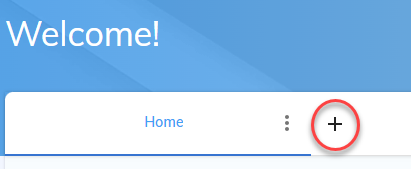
To add a new page, click the + icon to the right of the 1st page.